
Welcome to Boostify · Jinx
Thank you for purchasing Jinx Fortnite Cheats! Please follow the instructions below closely to ensure a correct setup on your system.
Installation — Windows
1
Run the loader as administrator.
2
Log in with your license key.
3
Wait for "Waiting for Fortnite" to appear.
4
Launch Fortnite in Windowed Fullscreen mode.
How to Use Jinx
Master the controls for a better Fortnite experience:
Menu Control: Use the Insert key or F1 to toggle the cheat menu.
1. Display Settings
Ensure Fortnite is running in Windowed Fullscreen or Windowed mode. The overlay will not show in exclusive Fullscreen mode.
2. Features List
- Aimbot: Includes FOV circle and smoothing. We suggest FOV 100 and Smoothing 10 for "Legit" play.
- Visuals: Box ESP, Skeleton, and Distance. You can also enable "Item ESP" to find high-tier loot.
- Misc: Includes "No Recoil" and "Rapid Fire" (unstable, use with caution).
3. Pro Tips
- Avoid looting or killing through walls if others are spectating you.
- Keep your FOV circle visible to know your aimbot's effective range.
- Check for the latest "Safe" version on the status page before every update.
BSOD (Blue Screen) Issues
If you experience blue screens, please check the following:
- Disable Virtualization in your BIOS (VT-x / AMD-V / SVM).
- Disable Core Isolation in Windows Security.
- Disable Secure Boot in your BIOS.
- Uninstall recent Windows security updates.
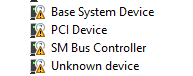
Driver Load Errors
If the loader fails to load the driver, download the required fix:
Run the fix as administrator and restart your PC.
Frequently Asked Questions
?
"Waiting for Fortnite" is stuck. What now?
Check if your antivirus or firewall is blocking the loader. Ensure you are running the loader as administrator.
Check if your antivirus or firewall is blocking the loader. Ensure you are running the loader as administrator.
?
Is Jinx safe for my main account?
No cheat is 100% safe. While Jinx has an excellent detection history, we always recommend using a secondary account.
No cheat is 100% safe. While Jinx has an excellent detection history, we always recommend using a secondary account.
?
Does Jinx work on Windows 11?
Yes, Jinx supports all latest versions of Windows 10 and Windows 11.
Yes, Jinx supports all latest versions of Windows 10 and Windows 11.